Appearance
Getting started
From an empty account to monitored tables and the first analysis pass. Each section links to deeper pages where needed.
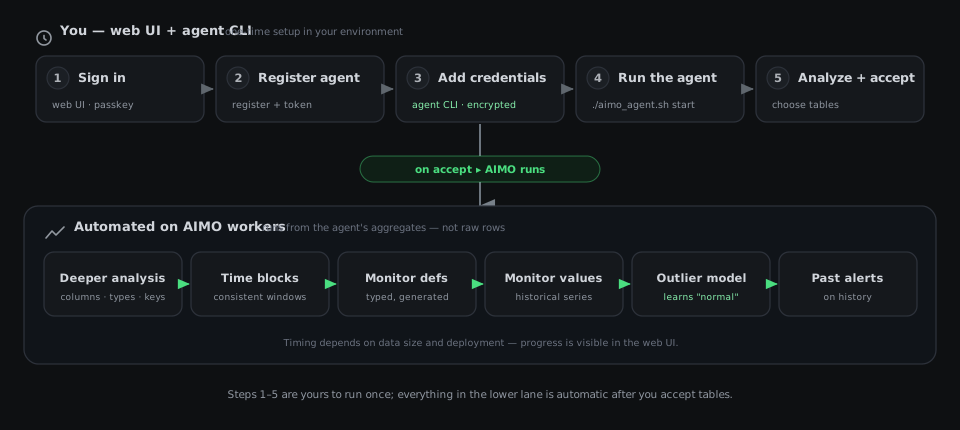
The diagram above maps the whole page. The top row is the one-time setup you drive from the web UI and the agent CLI. The moment you accept tables, AIMO takes over the lower lane — a fixed pipeline that builds monitors and learns what "normal" looks like, entirely from aggregates the agent produced. You never hand raw data to the cloud to make this happen.
1. Sign up and sign in
Create an account and sign in to the web UI. You need an active session before you can register agents and work with connections.
2. Register an agent
In the web UI, open Add agent, choose Register via agent, and follow the steps. You receive a registration token and commands to run the agent CLI in your environment so the agent can authenticate to AIMO.
For keys, tokens, and what is written on disk, see Registration.
3. Add database credentials with the agent CLI
Credentials are added through the agent, not in the browser. During registration the register command generates an Ed25519 keypair, sends the public key to AIMO, and writes a helper script aimo_agent.sh next to your agent data (the directory you mount as /app/data in Docker, or the current directory otherwise). If it cannot write the file it prints the contents for you to save by hand. The script exports AIMO_AGENT_UUID, AIMO_AGENT_PRIVATE_KEY_B64, AIMO_AGENT_PASSPHRASE, AIMO_AGENT_HOST, and AIMO_AGENT_USE_TLS, runs the agent image, and forwards CLI arguments—you do not need to set those variables by hand for routine use.
Inspect the passphrase
register writes a random AIMO_AGENT_PASSPHRASE into the script. Connection credentials are encrypted with it, so review the script and replace the passphrase with your own before adding credentials. See Registration.
From the same directory as aimo_agent.sh:
bash
chmod +x aimo_agent.sh   # once
./aimo_agent.sh add      # interactive: name, database type, secrets; tests, then stores via the API
add tests the connection locally first; if the test fails the credentials are not stored. Use the same wrapper for list, show, test, edit, and delete.
If you install the agent package directly (not Docker), use python -m aimo.agent.cli with the same subcommands and environment—see Agent CLI.
Supported databases
The agent connects through SQLAlchemy and ships first-class support for PostgreSQL (including Databricks Lakebase), MySQL, Microsoft SQL Server, Snowflake, BigQuery, Databricks, Amazon Redshift, DuckDB, and SQLite. Each accepts either individual fields (host, user, …) or a complete SQLAlchemy URL. Use read-only credentials—see Security.
Keep the agent process running when jobs should run against your data (for example ./aimo_agent.sh start). See Operations and Registration.
4. Analyze the connection in the web UI
Open the connection you added via the CLI and run analyze so AIMO can inspect metadata and structure before you choose tables.
5. Choose tables and accept
Select tables to onboard, then accept. AIMO assigns monitor definitions for those tables; you do not pick individual monitor types in the UI. See Monitors.
After you accept
The moment you accept tables, AIMO dispatches one automated pipeline that runs the same fixed chain of steps for each accepted table (tables are processed in parallel):
- Schema analysis — columns, types, keys, and a small time-aware sample, so the steps below know the table's shape and how it advances over time
- Table profile — derives a time binding (the time column and cadence used to group rows into blocks, or whole-table mode when there is no time signal) plus a description and any dimensions
- Column profiling — per-column value statistics drawn from the detector's training window
- Monitor definitions — generated, typed monitors for the table. AIMO assigns these; you do not pick types in the UI
- Monitor values — computed for the new monitors over their history, time block by time block
- Detector training — an outlier model trained on the monitor history
- Expected ranges — the trained detector infers, per monitor and time block, the range a value should fall in
- Outlier check — actual values are compared against those ranges; outliers raise alerts, including over historical blocks
A per-table health snapshot is written at the end of each chain, and an account-level analysis runs once the tables finish, so the overview reflects health as soon as onboarding completes. Progress is visible in the web UI; timing depends on deployment and data size.
See Monitors and Outlier detection.
See the product site for pricing and positioning.